Meeting Hub

Drag your work into a hub for each meeting, and present it inside the app.

Download for Mac Windows, soon

Meeting Hub is for Mac. Open this page on your Mac to download it.Windows, soon.

Version 0.1.4 · 125 MB · Apple silicon Macs · macOS 13 or later

It does not run on Intel Macs. To check yours: Apple menu, About This Mac; Apple silicon says Chip, Apple M1 or later.

The first time you open it

Every Mac app whose maker has not paid Apple to check it gets the same box the first time, and the box has no Open button. It does not mean anything was found in Meeting Hub. You get past it once, in System Settings.

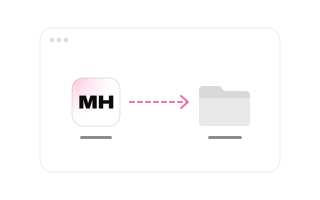
A drawn window: the Meeting Hub icon, and an arrow to the Applications folder
Put it in Applications
  1. Open the file you downloaded.
  2. Drag Meeting Hub onto the Applications folder.
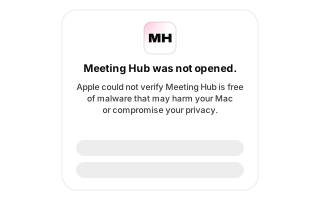
The warning box from macOS: Meeting Hub was not opened. Apple could not verify Meeting Hub is free of malware that may harm your Mac or compromise your privacy.
Open Meeting Hub
  1. Open Meeting Hub from Applications.
  2. Your Mac does not open it, and shows a box that says:“Meeting Hub was not opened. Apple could not verify Meeting Hub is free of malware that may harm your Mac or compromise your privacy.”
  3. Close the warning. Do not move Meeting Hub to the Bin.
A drawn System Settings window, Privacy and Security chosen, the Open Anyway button ringed
Allow it once
  1. Apple menu, System Settings, then Privacy & Security.You may need to scroll down.
  2. Go to Security, then click Open.
  3. Click Open Anyway.It is there for about an hour after step 3.
  4. Enter your login password, then click OK.

From then on, Meeting Hub opens with a double click, like any other app.

These are Apple’s own steps for macOS 15 and later. On macOS 13 or 14: in Applications, Control‑click Meeting Hub, choose Open, then click Open.

How to use it

The first time Meeting Hub opens, a short walk-through shows you each of these. Help, in the side list, plays it again.

The Meeting Hub window: the side list of hubs, and a hub called Monday review holding a deck, two posters, a board of type and colour and a schedule
Your hubs

Each hub holds the work for one meeting. New hub makes another.
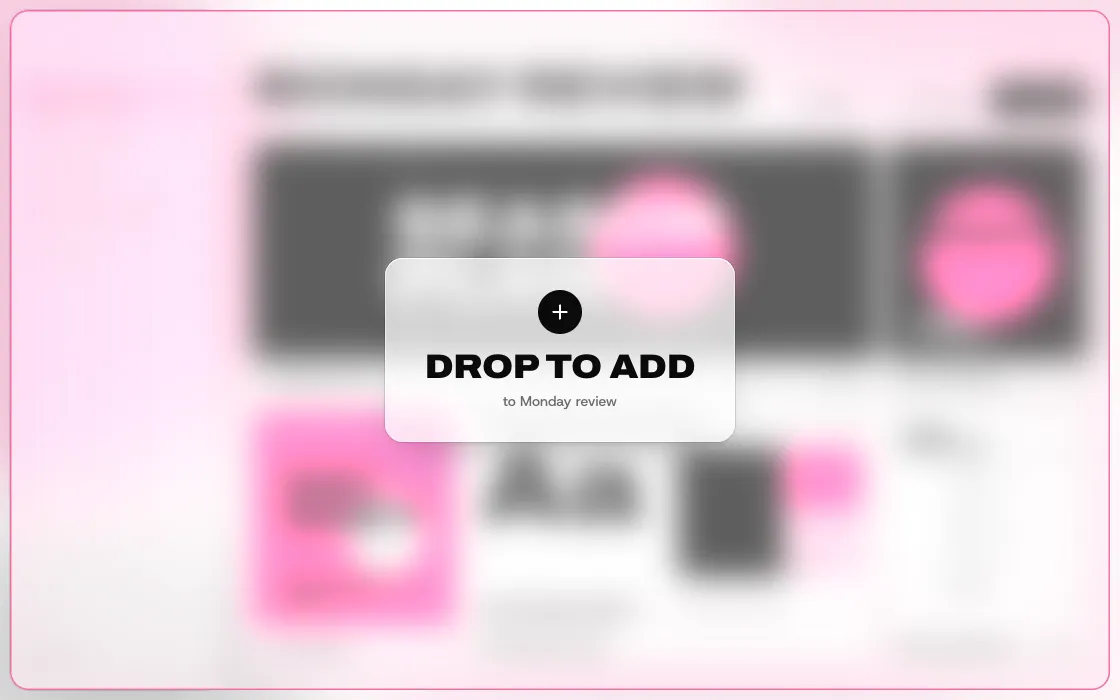
Files dragged over the Meeting Hub window: the window blurs and says Drop to add, to Monday review
Drag your work in

Drop files anywhere on the window, or press Add files.

The thumbnail sheet open on a deck tile, its pages in a row below, the third page chosen
Choose the picture

Each file becomes a tile. Its menu changes the thumbnail.

A deck presented full size inside Meeting Hub, its first page showing, with the page controls at the top
Present

Click a tile, or press Present, to show the work full size.
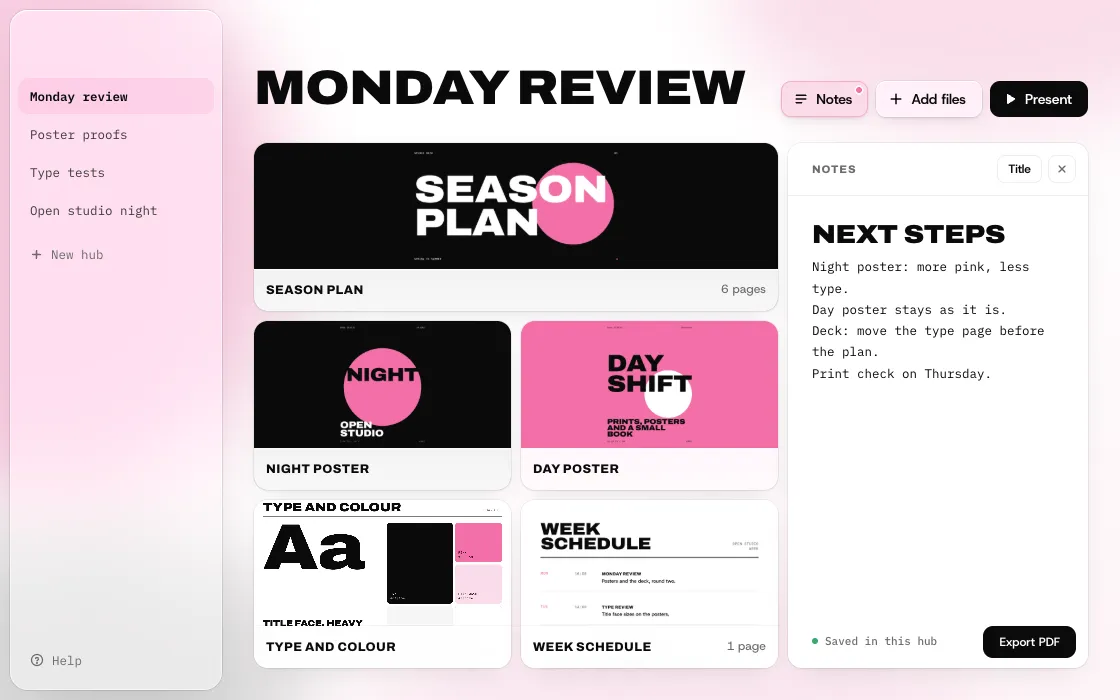
The notes column open beside the tiles: a title, Next steps, a few lines under it, and the Export PDF button
Take notes

Press Notes to write beside your work. It saves by itself. Export PDF makes a copy to send.

Presenting

→Space
Next page
←
Previous page
HomeEnd
First and last page
F
Full screen
G
Every page at once
Esc
Step back out

What you can drop in

PDFs, pictures, films and web pages present inside Meeting Hub.

Documents such as Keynote or Word files open in their own app; export a PDF to present one inside Meeting Hub. A link you add opens in your web browser, and only when you tap it.

What it does on your Mac

Only what Meeting Hub’s own tests showed, run on a Mac.

No internet by itself
No updates, no account, no tracking, and nothing that starts when your Mac starts. A test run watched every connection the app could make and saw none.
Only its own folder
Everything Meeting Hub saves goes into its own folder, plus the small settings file macOS keeps for every app. Nothing goes to your Downloads, Desktop or Documents. The one exception is Export PDF: it asks where to save the PDF of your notes, and writes nothing if you cancel.
It never starts a program
If you drop in a program or a script, tapping it opens the folder that holds it instead. Meeting Hub never runs it.
Web pages stay in their frame
A web page you drop in shows in a closed frame of its own. It cannot reach your files or the rest of the app.
Not checked by Apple
Meeting Hub is not signed with Apple, so Apple has not checked it. Apple warns that opening an unchecked app is the most common way a Mac gets malware: open Meeting Hub only if it came from someone you know.
Scanned for viruses
Checked on VirusTotal on 12 Nov 2026: 0 of 59 virus scanners flagged the download. That is not proof it is safe. It means no scanner knew of anything bad in it that day.
Two known parts inside
Electron, which draws the window, and pdf.js, which draws PDFs. Both are free and open, each at a fixed version checked against its published fingerprint.

Where it keeps your work

~/Library/Application Support/Hub
Your hubs and their notes, the copies of the files you added, and the app’s own caches. The folder keeps the app’s first name, Hub.
~/Library/Preferences/app.hub.desktop.plist
A small settings file macOS keeps for every app.

To remove it

  1. Quit Meeting Hub, then move it from Applications to the Bin.
  2. Your hubs stay behind, so you do not lose them by accident.
  3. To remove them too: in the Finder choose Go, then Go to Folder, type each place under Where it keeps your work, and move it to the Bin.